API Keys
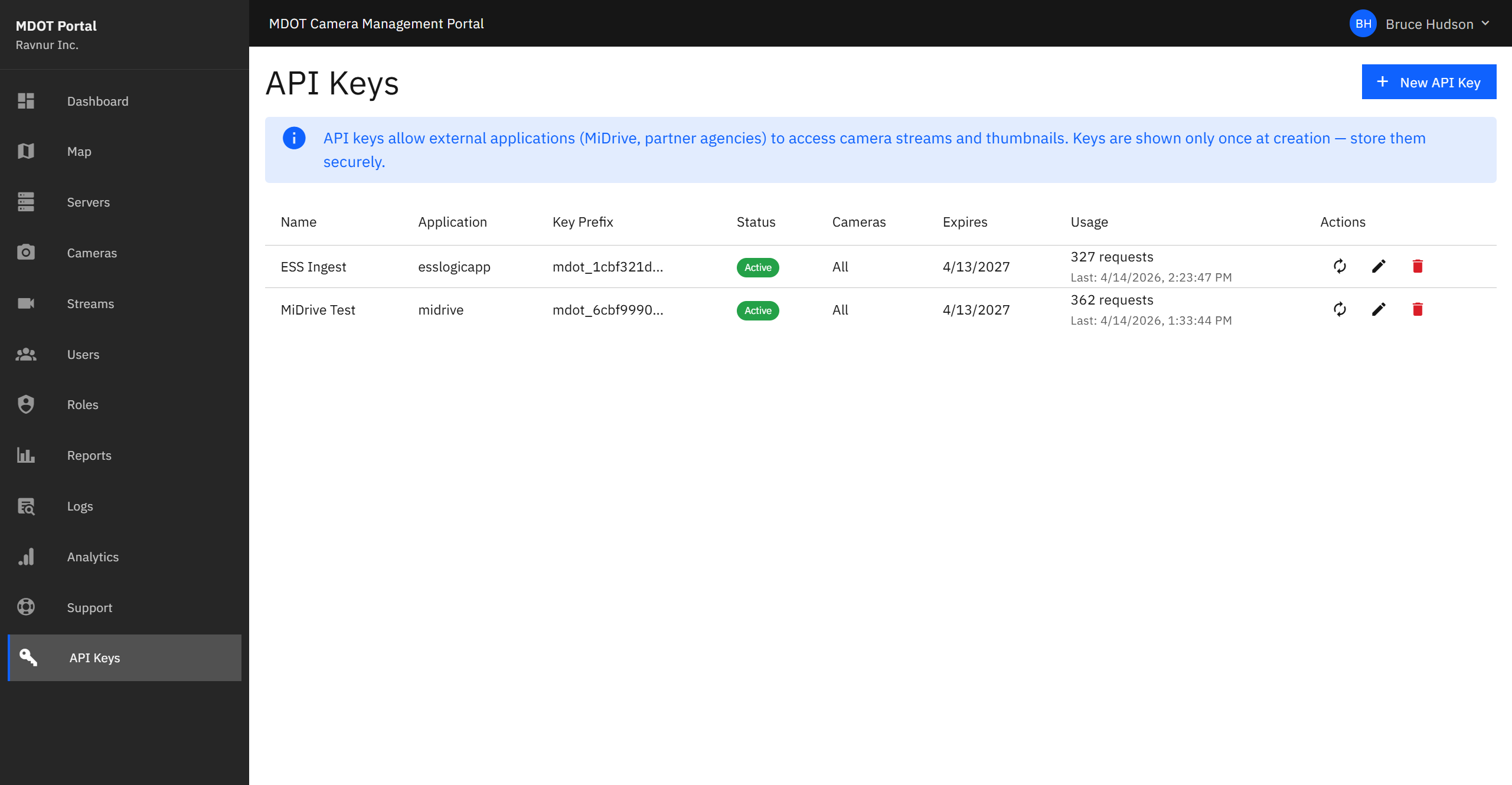
The API Keys page manages access keys for external applications that need to retrieve camera feeds and thumbnail images from the portal without signing in through the standard interface.
What This Page Does
Some applications — such as the MiDrive public traveler information site or partner agency systems — need to pull camera images and live feeds directly from the portal. Instead of requiring a user to sign in, these applications use a pre-shared key to identify themselves. The API Keys page lets administrators create, monitor, and manage these keys.
Key Features
Create a New Key
Click Create Key to generate a new access key. You will be asked to provide:
- Application Name — A label that identifies which application or partner will use this key (for example, "MiDrive Production" or "Oakland County ITS").
- Camera Restrictions — Choose whether the key can access all cameras or only specific ones. Restricting access to certain cameras limits what the external application can see.
- Expiration Date — Set a date when the key will stop working. After this date, the external application will need a new key. This ensures that old, forgotten keys do not remain active indefinitely.
After creating the key, it is displayed once in full. Copy it immediately and provide it to the application owner — you will not be able to see the full key again.
Key Rotation
When a key needs to be replaced — for example, if it may have been shared with someone who should not have it, or if it is approaching its expiration date — use the Rotate button. Rotation generates a new key while keeping the old key active for a 24-hour grace period. This gives the external application owner time to update their system to the new key without any interruption in service.
Usage Statistics
Each key shows two usage indicators:
- Request Count — The total number of times the key has been used to request camera data.
- Last Used — The date and time the key was most recently used. If a key has not been used in a long time, it may be safe to revoke.
Revoke a Key
If a key is no longer needed or has been compromised, click Revoke to disable it immediately. The external application will no longer be able to access any camera data using that key. This action cannot be undone — a new key must be created if access is needed again.
How It Works in Practice
- Open the API Keys page from the navigation menu.
- Click Create Key and fill in the application name, camera restrictions, and expiration date.
- Copy the generated key and send it securely to the application owner.
- Monitor the key's usage statistics periodically to confirm it is being used as expected.
- When the key approaches its expiration date, use Rotate to issue a replacement with a 24-hour overlap.
- If a key is no longer needed, click Revoke to disable it immediately.