Support
The Support page lets you submit a help request when something is not working correctly or when you have a question about the portal. Administrators can also view and manage all submitted tickets.
What This Page Does
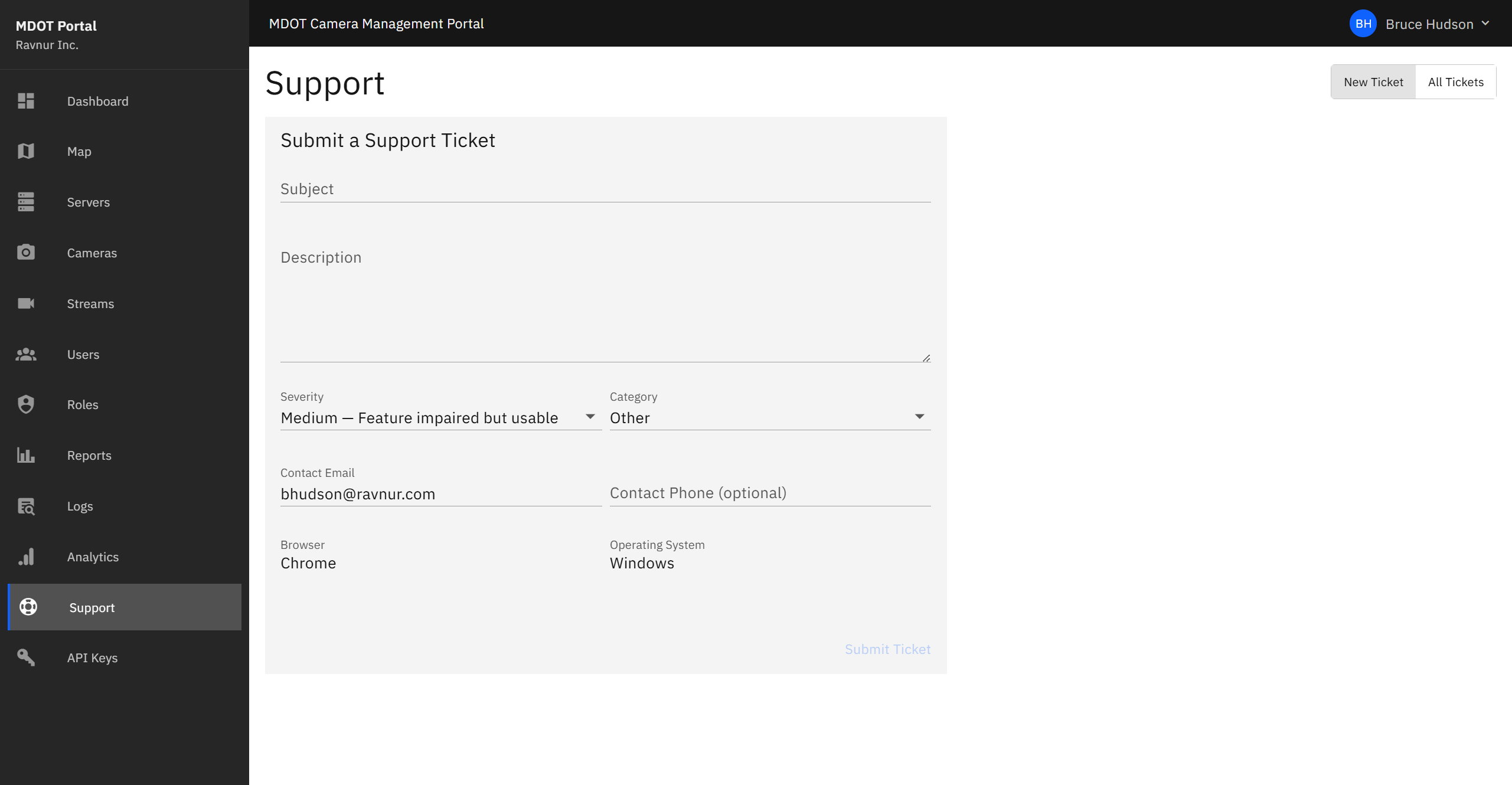
When you encounter a problem or need assistance, you can fill out a support ticket form directly in the portal. The ticket is emailed to the support team and saved in the system so you can track its status. Administrators have an additional view that shows all tickets submitted by every user.
Key Features
Submit a New Ticket
The ticket form includes the following fields:
- Subject — A short summary of the issue (for example, "Camera feed not loading for SEMTOC-CAM-01").
- Description — A detailed explanation of what is happening, including any steps you took before the problem occurred.
- Severity — How urgent the issue is. Choose from four levels:
- Critical — The portal or a major feature is completely unusable.
- High — A feature is not working correctly and there is no workaround.
- Medium — A feature is not working as expected, but a workaround exists.
- Low — A minor issue, question, or improvement suggestion.
- Category — The area of the portal the issue relates to (for example, Cameras, Servers, Users, or General).
- Contact Information — Your name and email are filled in automatically from your account. You can add a phone number if you prefer to be contacted by phone.
Automatic Browser Detection
When you submit a ticket, the portal automatically includes your browser name, version, and operating system. This helps the support team reproduce and diagnose the issue without needing to ask you for those details.
Your Submitted Tickets
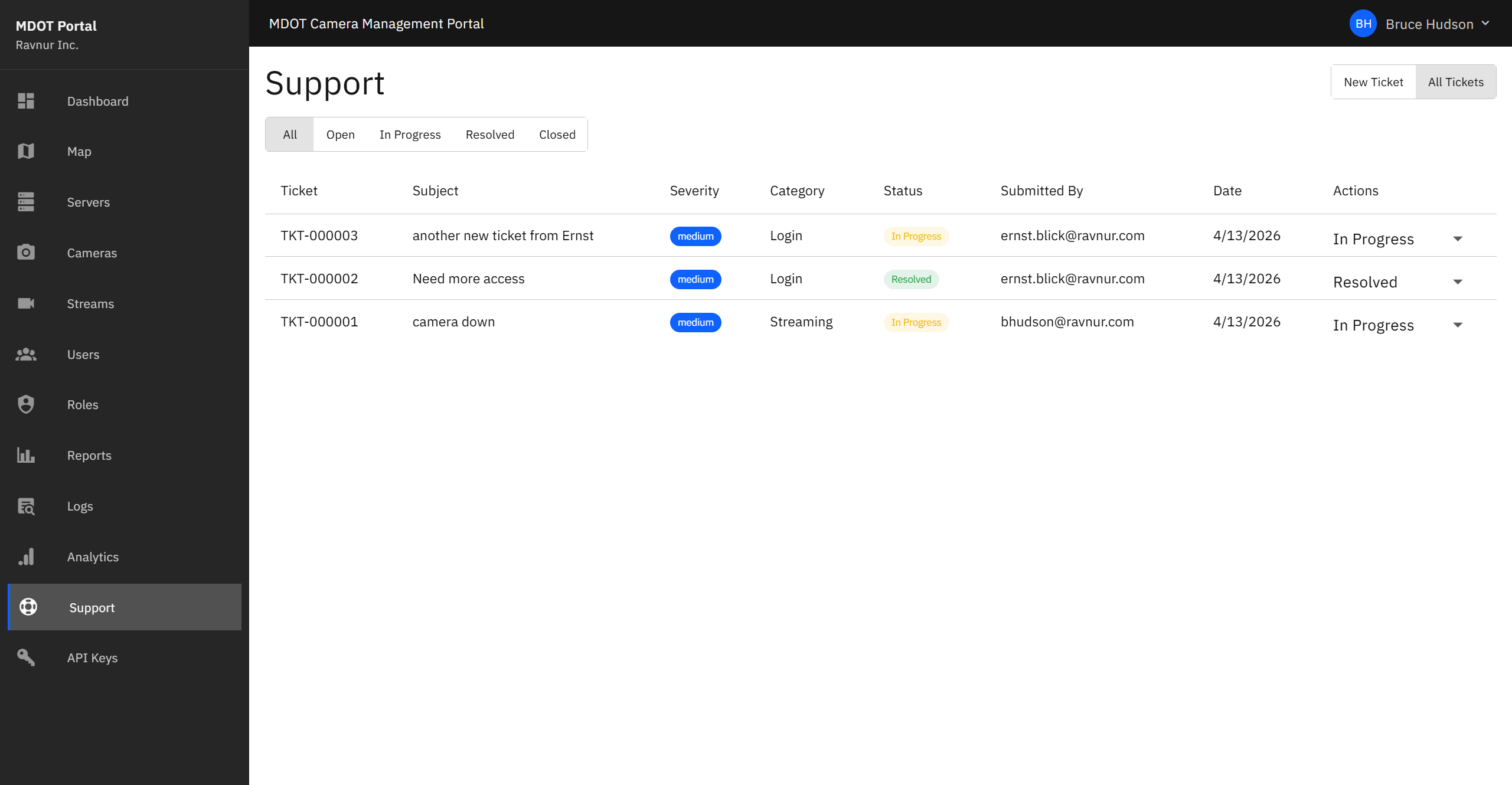
After submitting a ticket, you can see all of your own past tickets in a list below the form. Each ticket shows its subject, severity, current status (Open, In Progress, or Resolved), and the date it was submitted.
Ticket Management (Administrators)
Super Admins see an expanded view that includes tickets submitted by all users across the portal. From this view, administrators can update the status of any ticket and change its severity level if needed.
How It Works in Practice
- Open the Support page from the navigation menu.
- Fill in the subject and description fields. Be as specific as possible — include the name of the camera, server, or feature involved.
- Select the appropriate severity level and category.
- Click Submit Ticket. The support team receives an email notification immediately.
- Check back on the Support page to see updates on your ticket's status.