Logs
The Logs page provides detailed records of changes, system events, and streaming server messages. Use it to investigate issues, verify what happened, and maintain a complete audit trail.
What This Page Does
Logs are organized into three views, each accessible through a tab at the top of the page. Every view supports filtering by date, and most views allow additional filtering by action type, user, or affected item. Logs are displayed in reverse chronological order — newest entries appear first.
Key Features
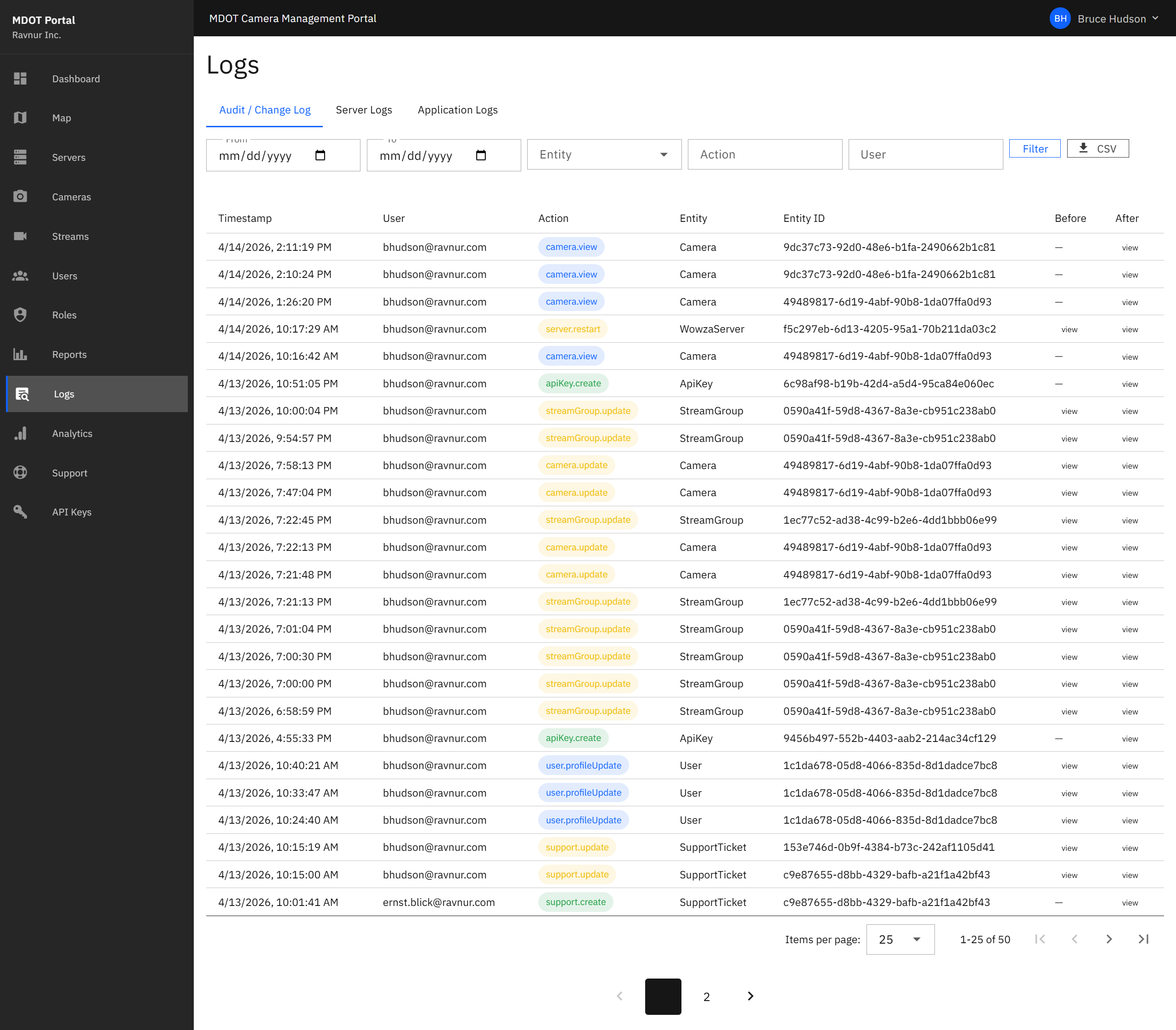
Audit Change Log
The Audit Change Log is a detailed record of every change made through the portal. When someone adds a camera, updates a user's role, changes a server setting, or performs any other administrative action, the system records exactly what was changed, who made the change, and what the values were before and after. This is the most detailed view available and is useful for troubleshooting or compliance reviews.
Application Logs
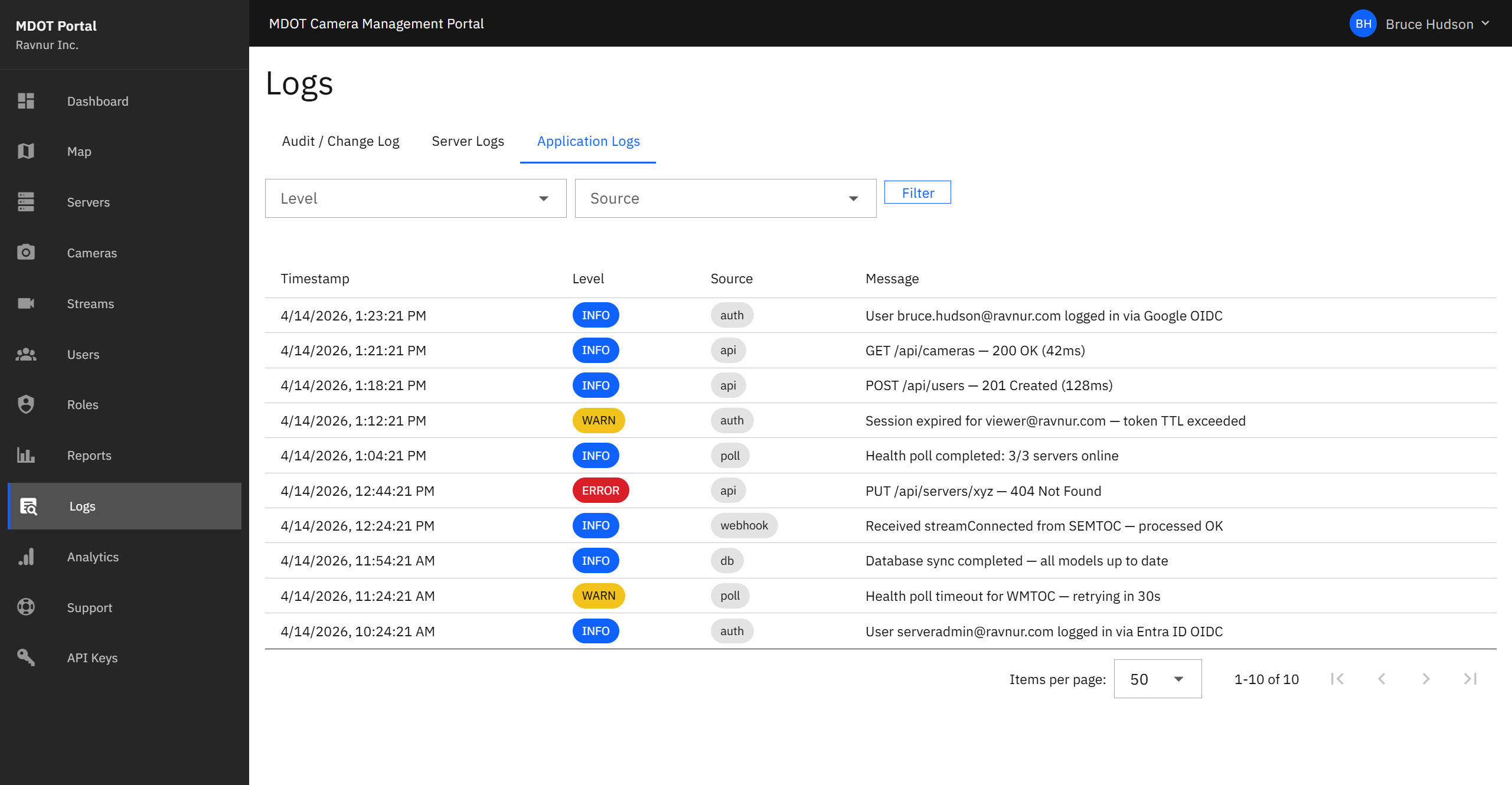
Application Logs capture events generated by the portal itself — sign-in attempts, scheduled tasks, background processes, and any errors the system encounters. These entries help administrators understand what the portal is doing behind the scenes and identify problems early.
Server Logs
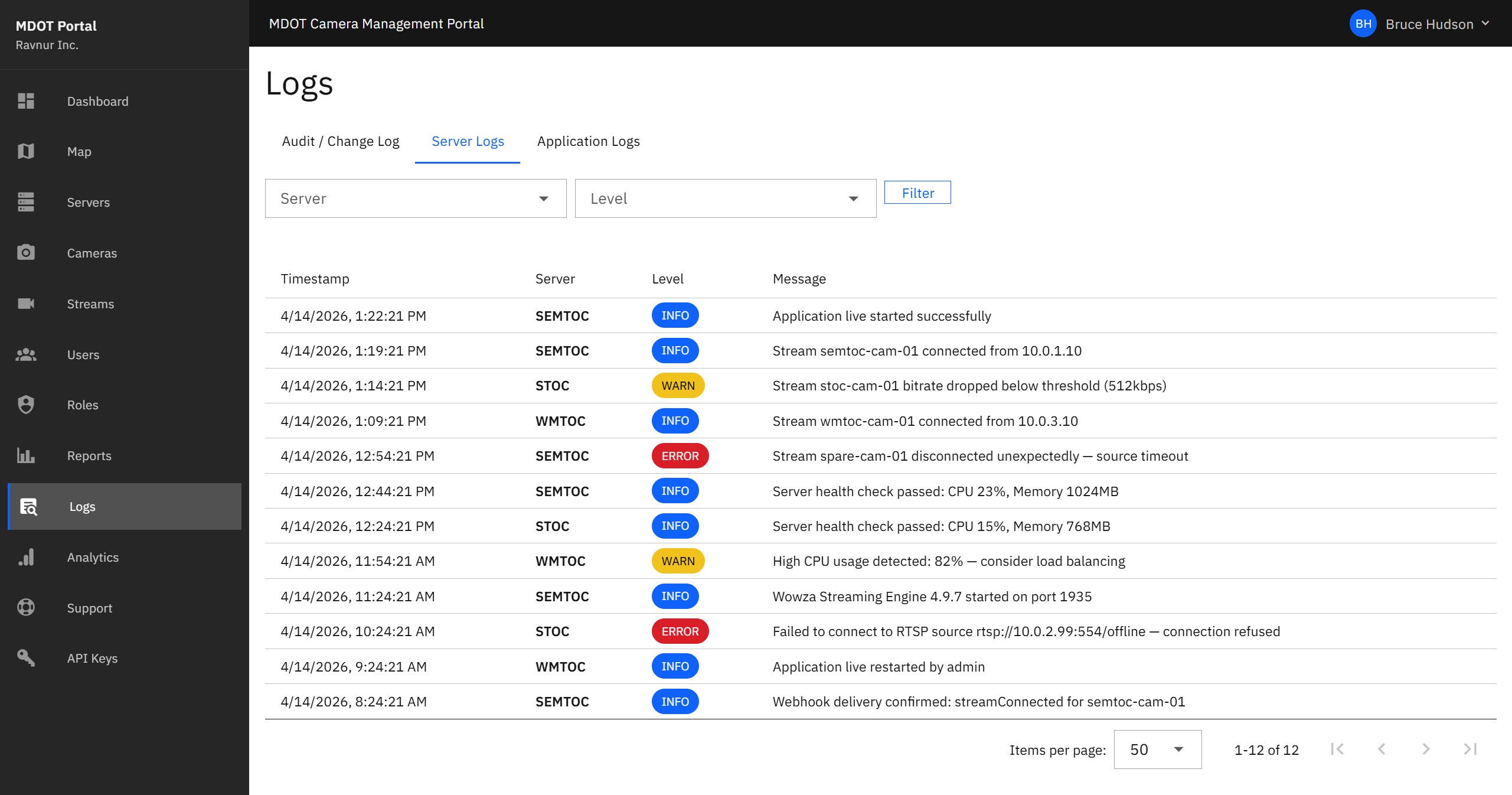
Server Logs display messages from the streaming servers themselves. These include connection events, feed start and stop notices, and any errors reported by the streaming software. When a camera feed drops or a server reports a problem, the details appear here.
Filters
All three log views support filtering to help you find specific entries:
- Date range — Narrow results to a specific time period.
- Action type — Filter by the kind of event (for example, "create," "update," "delete," or "error").
- User — Show only entries related to a specific person.
- Entity — Show only entries related to a specific item, such as a particular camera or server.
How It Works in Practice
- Open the Logs page from the navigation menu.
- Select the tab for the type of log you need: Audit Change Log, Application Logs, or Server Logs.
- Use the filters at the top to narrow the results. For example, set a date range and select a specific user to see everything that person changed.
- Click on any log entry to expand it and see the full details, including before-and-after values for change records.
- If you need to share or archive the log data, use the export option to download the filtered results.