Roles & Permissions
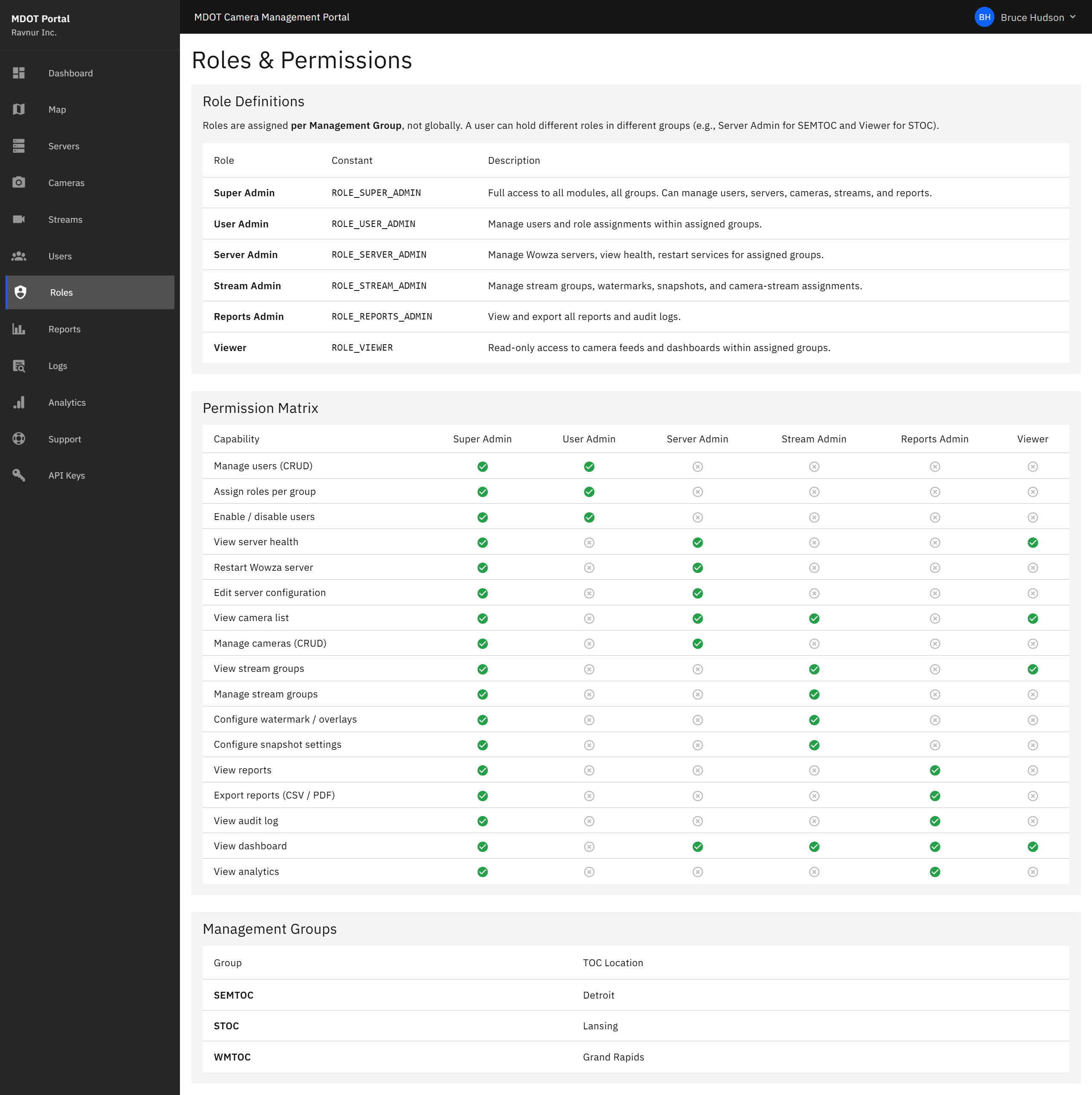
This reference page explains the six roles available in the portal, what each role can do, and how roles are assigned per Management Group rather than globally.
What This Page Does
The Roles page displays a permission matrix showing every action available in the portal and which roles are allowed to perform it. Use this page to understand what a particular role can and cannot do, or to determine which role to assign to a new user.
Key Features
The Six Roles
Every user in the portal is assigned one of these six roles for each Management Group they belong to:
- Super Admin — Full access to everything in the portal. Can manage users, servers, cameras, streams, reports, and system settings across all Management Groups.
- User Admin — Can create, edit, enable, and disable user accounts. Can assign roles to users within their Management Group. Cannot manage servers or cameras.
- Server Admin — Can view and restart streaming servers, add and edit cameras, and manage camera connections. Cannot manage users or stream groups.
- Stream Admin — Can create and edit stream groups, assign cameras to groups, and configure watermark settings. Cannot manage users or servers.
- Reports Admin — Can view and export all reports (user access, availability, audit log, user accounts). Cannot make changes to the system.
- Viewer — Can view the dashboard, camera map, camera list, and watch live feeds. Cannot make any changes or access management pages.
Permission Matrix
The matrix on this page shows each portal action along the left side and each role across the top. A checkmark means the role can perform that action. Common actions include:
- View the dashboard
- View the camera map and watch live feeds
- Create, edit, and delete cameras
- Import cameras from a spreadsheet
- Create and edit stream groups
- Configure watermarks
- View and restart servers
- Create, edit, and disable user accounts
- Assign roles to users
- View and export reports
- View audit logs
Management Groups
MDOT operates three Traffic Operations Centers, each represented by a Management Group in the portal:
- SEMTOC — Southeast Michigan Traffic Operations Center, located in Detroit.
- STOC — State Traffic Operations Center, located in Lansing.
- WMTOC — West Michigan Traffic Operations Center, located in Grand Rapids.
How Per-Group Roles Work
Roles in this portal are not assigned globally. Instead, a user receives a role for each Management Group separately. This means:
- A user can be a Server Admin at SEMTOC (Detroit) but only a Viewer at STOC (Lansing) and WMTOC (Grand Rapids).
- A User Admin at STOC can manage user accounts for STOC but cannot change user assignments at SEMTOC or WMTOC.
- A Super Admin at all three groups has full access everywhere.
This design ensures that staff at each operations center have the right level of access for their location without granting unnecessary permissions elsewhere.
How It Works in Practice
- Open the Roles page from the navigation menu to review available roles and their permissions.
- When adding or editing a user on the Users page, refer to this matrix to choose the right role for each Management Group.
- If a user reports they cannot access a feature, check their role assignment for the relevant Management Group on this page to confirm whether that action is permitted.