User Management
The User Management page is where administrators create user accounts, assign roles, and control access to the portal. Roles are assigned per Traffic Operations Center, so a single user can have different permissions at different locations.
What This Page Does
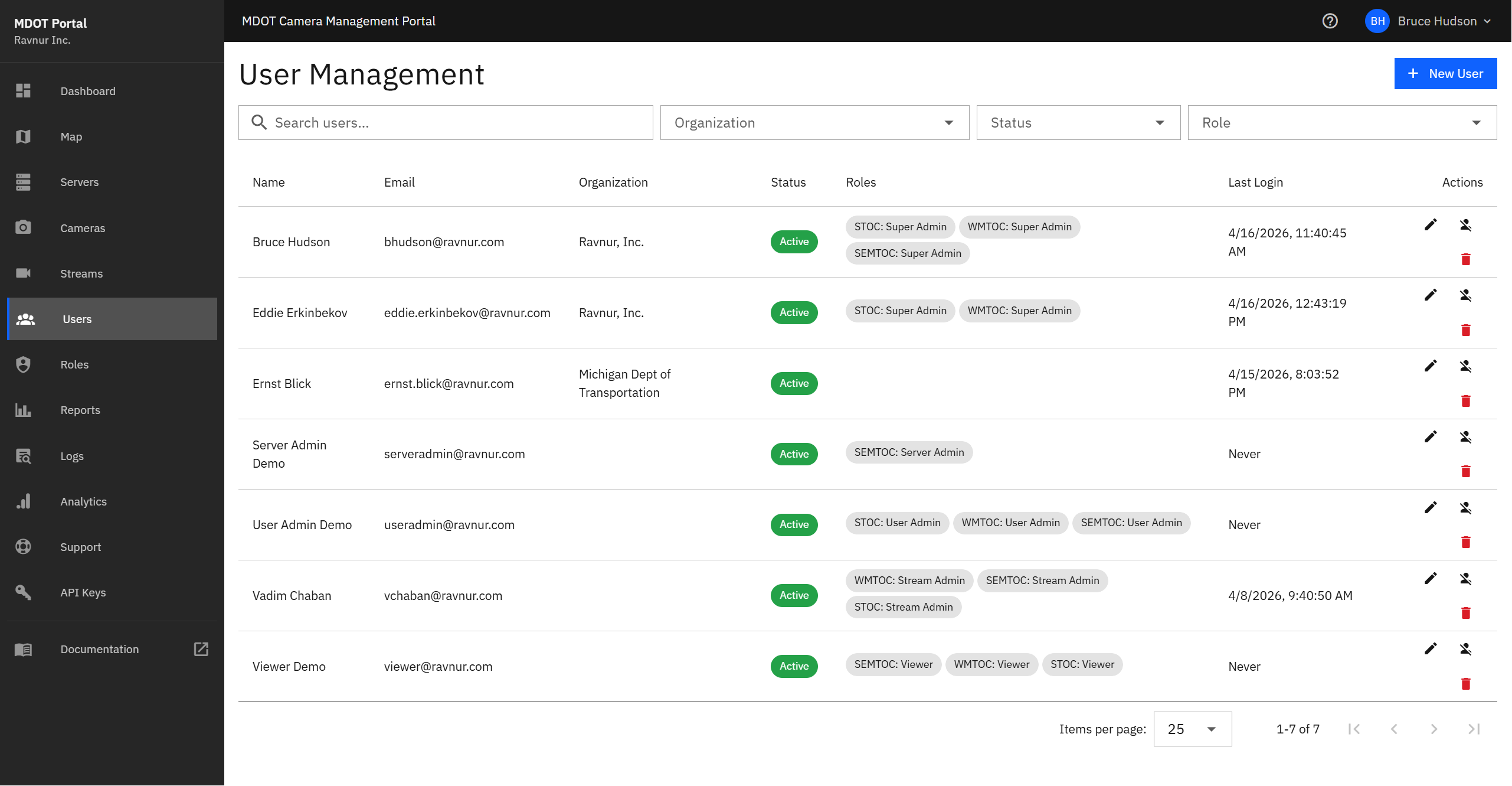
This page shows a paginated list of all portal users. Administrators can search for users, create new accounts, edit role assignments, and enable or disable accounts. Each user's roles are shown per Management Group, making it easy to see exactly what each person can do and where.
Key Features
User List
Each row in the user table shows:
- Email — The user's sign-in email address.
- Display Name — The name shown in the portal interface.
- Roles per Management Group — What role the user holds at each TOC. For example, a user might be Server Admin at SEMTOC (Detroit) but Viewer at STOC (Lansing).
- Enabled — Whether the account is active. Disabled accounts cannot sign in.
Search and Filters
Use the search bar at the top of the page to find users by email address or display name. Results update as you type. Three additional filters let you narrow the list further:
- Organization — Filter by the user's organization (e.g. MDOT, Michigan State Police). The dropdown is populated from the organizations already assigned to users in the system.
- Status — Show only Active or Disabled accounts.
- Role — Show only users who hold a specific role (e.g. Super Admin, Viewer) at any Management Group.
All filters combine with the text search and are applied server-side, so the results are paginated accurately even with filters active.
Create New User
Click the "Add User" button to create a new account. Fill in the user's email, display name, and assign roles for each Management Group they should have access to. The user will be able to sign in using their assigned email address.
Edit User
Click the edit button on any user to update their information. You can:
- Change the display name.
- Assign or remove roles for specific Management Groups.
- Enable or disable the account.
Role changes take effect the next time the user loads a page or signs in.
Per-Group Role Assignments
Roles in this portal are not global. Instead, each user can have a different role at each of the three Traffic Operations Centers:
- SEMTOC (Detroit)
- STOC (Lansing)
- WMTOC (Grand Rapids)
This means you can give someone full administrative access at their home TOC while limiting them to view-only access at other locations. See the Roles & Permissions page for details on what each role can do.
Enable and Disable Accounts
Rather than deleting a user, you can disable their account. A disabled user cannot sign in but their account and history are preserved. Re-enable the account at any time to restore access.
How It Works in Practice
- Open User Management from the navigation menu.
- To find an existing user, type their name or email in the search bar.
- To add a new team member, click "Add User," fill in their details, and assign roles for each Management Group they need access to.
- To change someone's permissions, click the edit button on their row, update their role assignments, and save.
- To temporarily remove access, disable the account instead of deleting it.