Streams & Stream Groups
Stream Groups control which cameras are available to different sets of users and how watermarks appear on video feeds. This page is where administrators organize cameras into access tiers.
What This Page Does
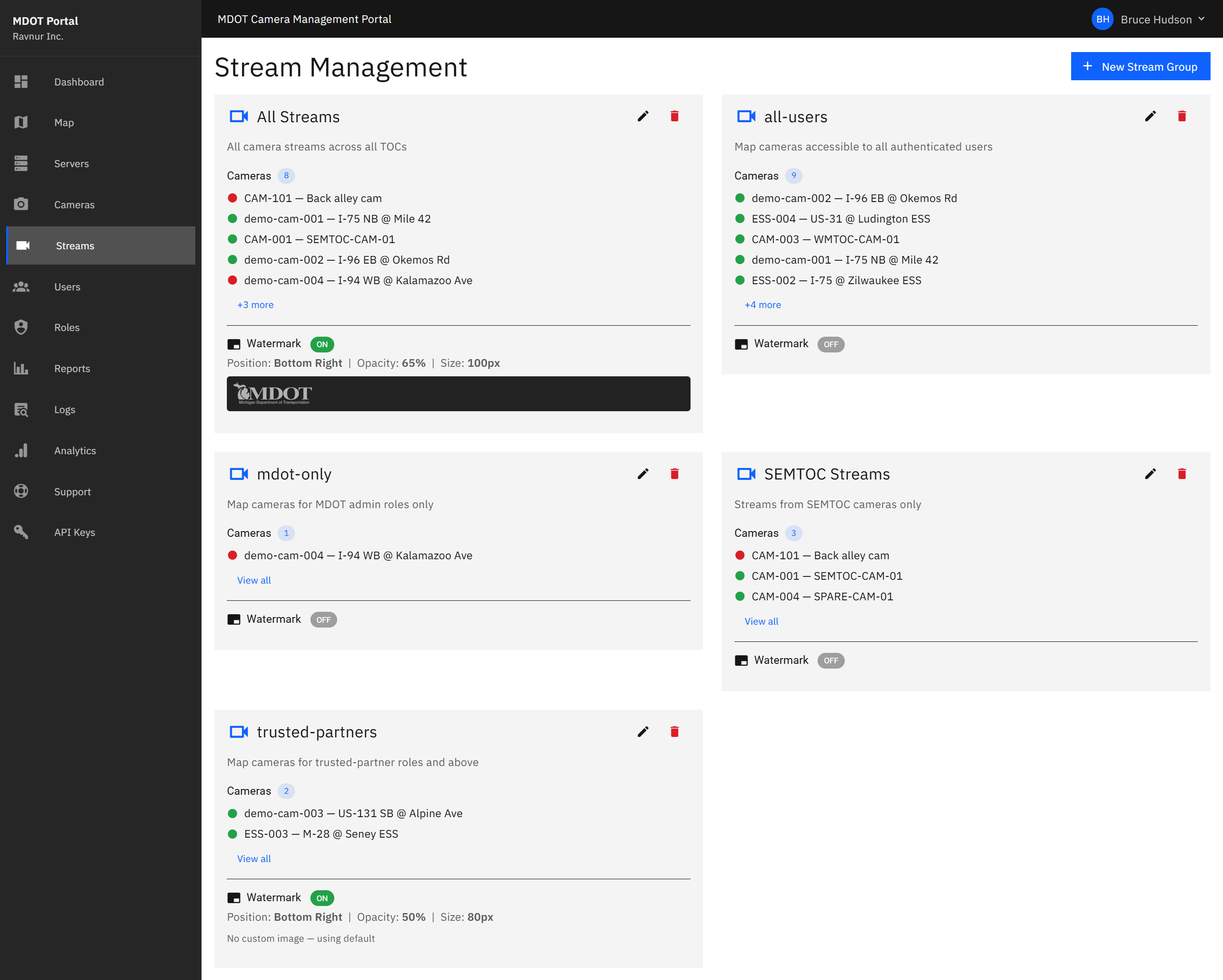
The Streams page displays all stream groups as cards. Each group defines a collection of cameras and a watermark configuration. By assigning cameras to different groups, administrators control which cameras appear on the map and in the camera list for users at different access levels.
Key Features
Stream Group Cards
Each stream group appears as a card showing:
- Group name — A descriptive label like "All Users," "Trusted Partners," or "MDOT Only."
- Assigned cameras — The first five cameras in the group are shown directly on the card. If the group contains more than five cameras, a "view all" link lets you see the complete list.
- Watermark preview — A thumbnail of the watermark image that will appear on video feeds for cameras in this group.
- Camera count — The total number of cameras assigned to this group.
Edit Stream Group
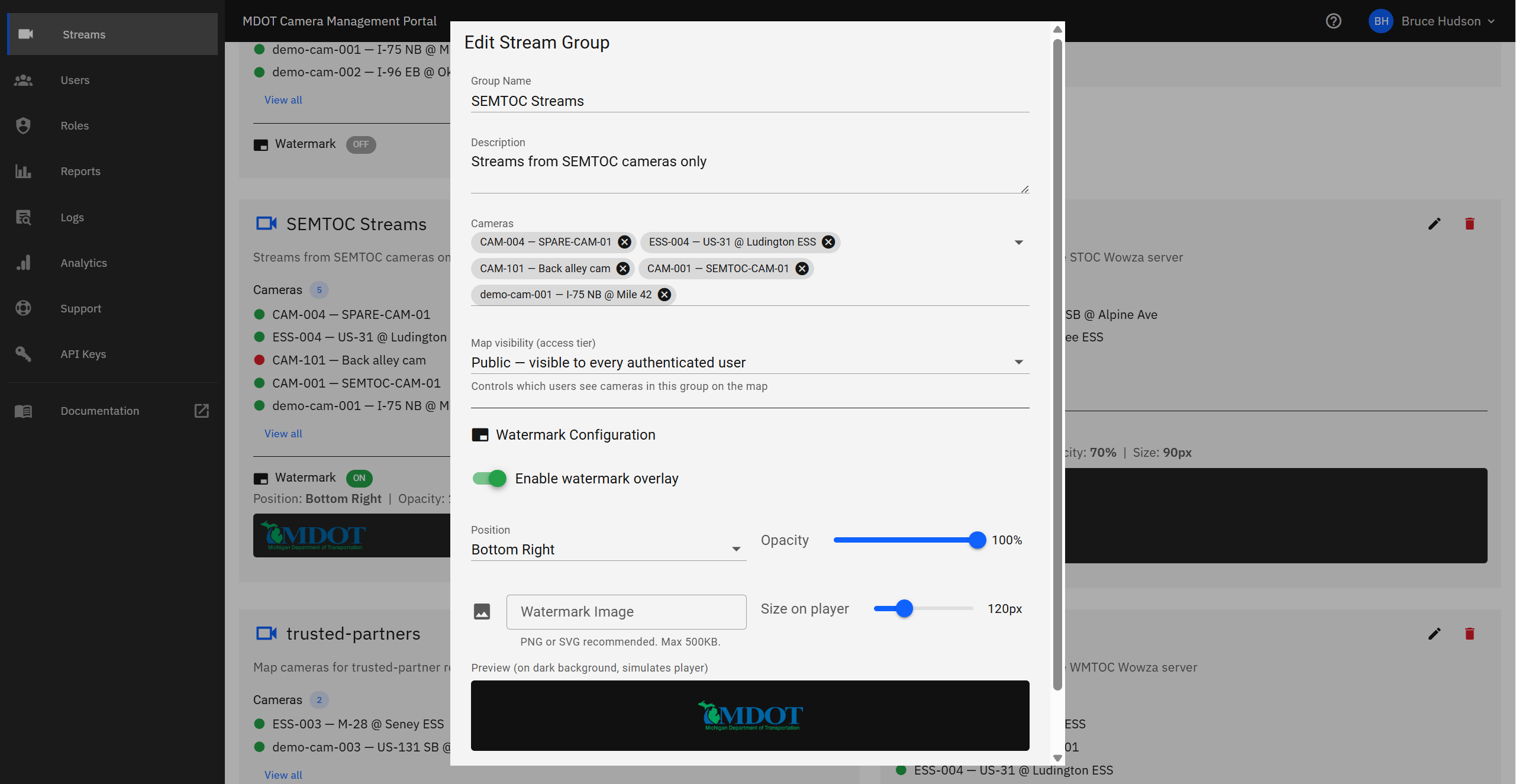
Click the edit button on any group card to open the editing form. From here you can:
- Change the group name — Update the label that identifies this group.
- Add or remove cameras — Select which cameras belong to this group.
- Upload a custom watermark image — Choose an image file to overlay on video feeds.
- Set watermark position — Place the watermark in a specific corner or area of the video frame.
- Adjust watermark opacity — Control how transparent or visible the watermark appears.
- Set watermark size — Control how large the watermark appears relative to the video frame.
Access Tiers
Stream groups are the primary way to create access tiers. For example:
- "All Users" — A broad group containing cameras that any authenticated user can view.
- "Trusted Partners" — A restricted group with additional cameras only available to partner agencies.
- "MDOT Only" — An internal group with cameras that only MDOT staff can access.
A single camera can belong to multiple stream groups. The groups a user can access depend on their role and Management Group assignments.
How It Works in Practice
- Open the Streams page from the navigation menu.
- Review the existing stream groups. Each card shows which cameras are assigned and how the watermark is configured.
- To create a new group, click the "Add Stream Group" button and fill in the name, select cameras, and configure the watermark.
- To update an existing group, click the edit button on its card. Add or remove cameras, change the watermark image, or adjust its position and appearance.
- Save your changes. Users assigned to this stream group will immediately see the updated camera list and watermark on their feeds.