Camera List
The Camera List is a searchable, filterable table of every camera registered in the system. Use it to find cameras, watch live feeds, edit camera details, or import cameras in bulk.
What This Page Does
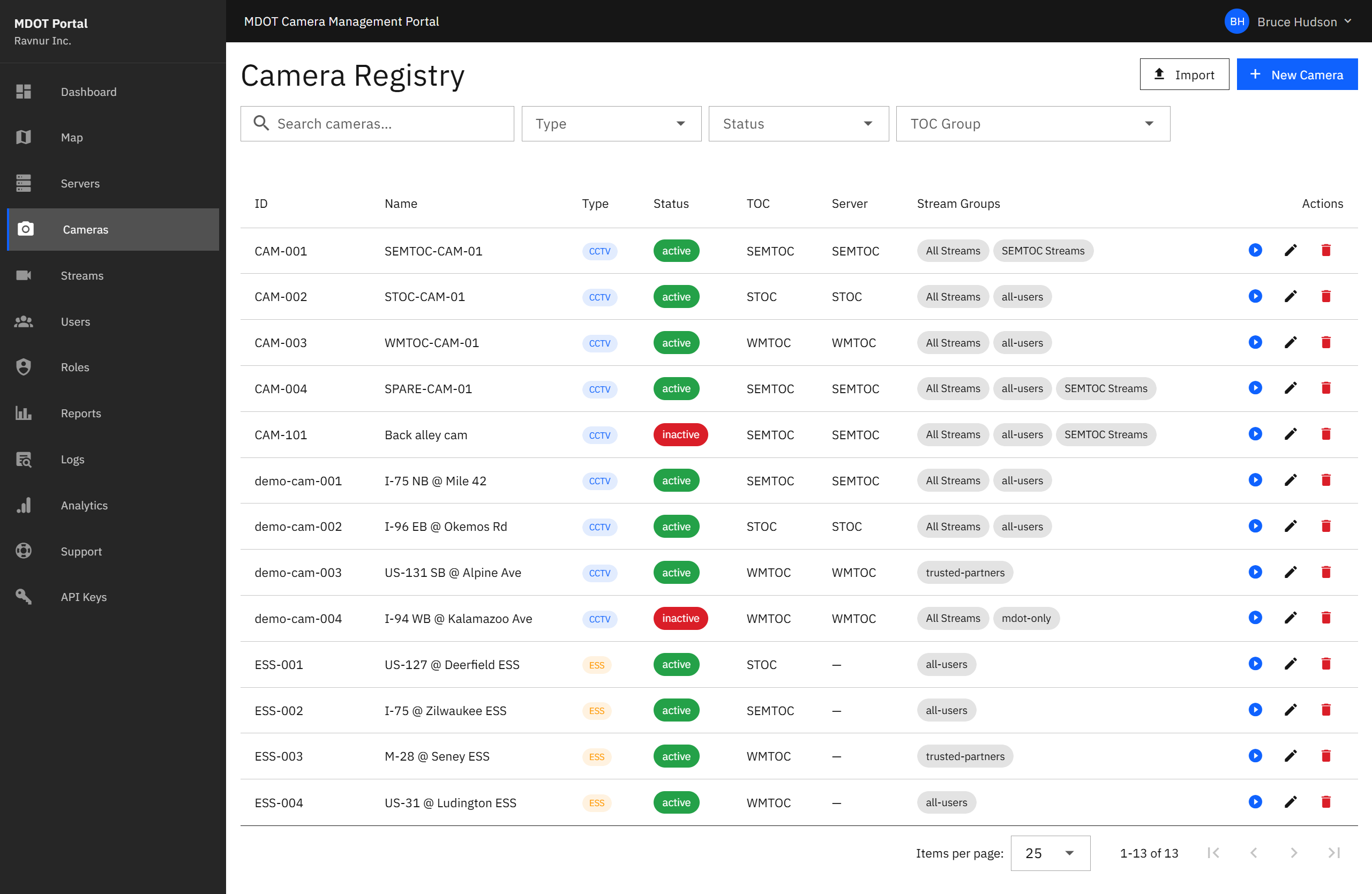
This page shows all cameras in a paginated table. You can search by name or ID, filter by status, camera type, or Traffic Operations Center (TOC), and take actions on individual cameras. Administrators can also add new cameras one at a time or import many cameras at once from a spreadsheet file.
Key Features
Camera Table
Each row in the table shows the following details about a camera:
- Camera ID — The unique identifier for the camera (e.g., CAM-001).
- Name — A human-readable name describing the camera location.
- Type — Either CCTV (live video camera) or ESS (environmental sensor station that captures periodic images).
- Status — A color-coded badge showing whether the camera is active, inactive, or in an error state.
- TOC Group — Which Traffic Operations Center manages this camera (SEMTOC, STOC, or WMTOC).
- Server — The streaming server this camera is connected to.
- Stream Groups — Which stream groups this camera belongs to, controlling who can view it.
Search and Filters
Use the search bar to find cameras by name or ID. The filter dropdowns let you narrow the list by:
- Status — Active, Inactive, or Error.
- Type — CCTV or ESS.
- TOC — SEMTOC, STOC, or WMTOC.
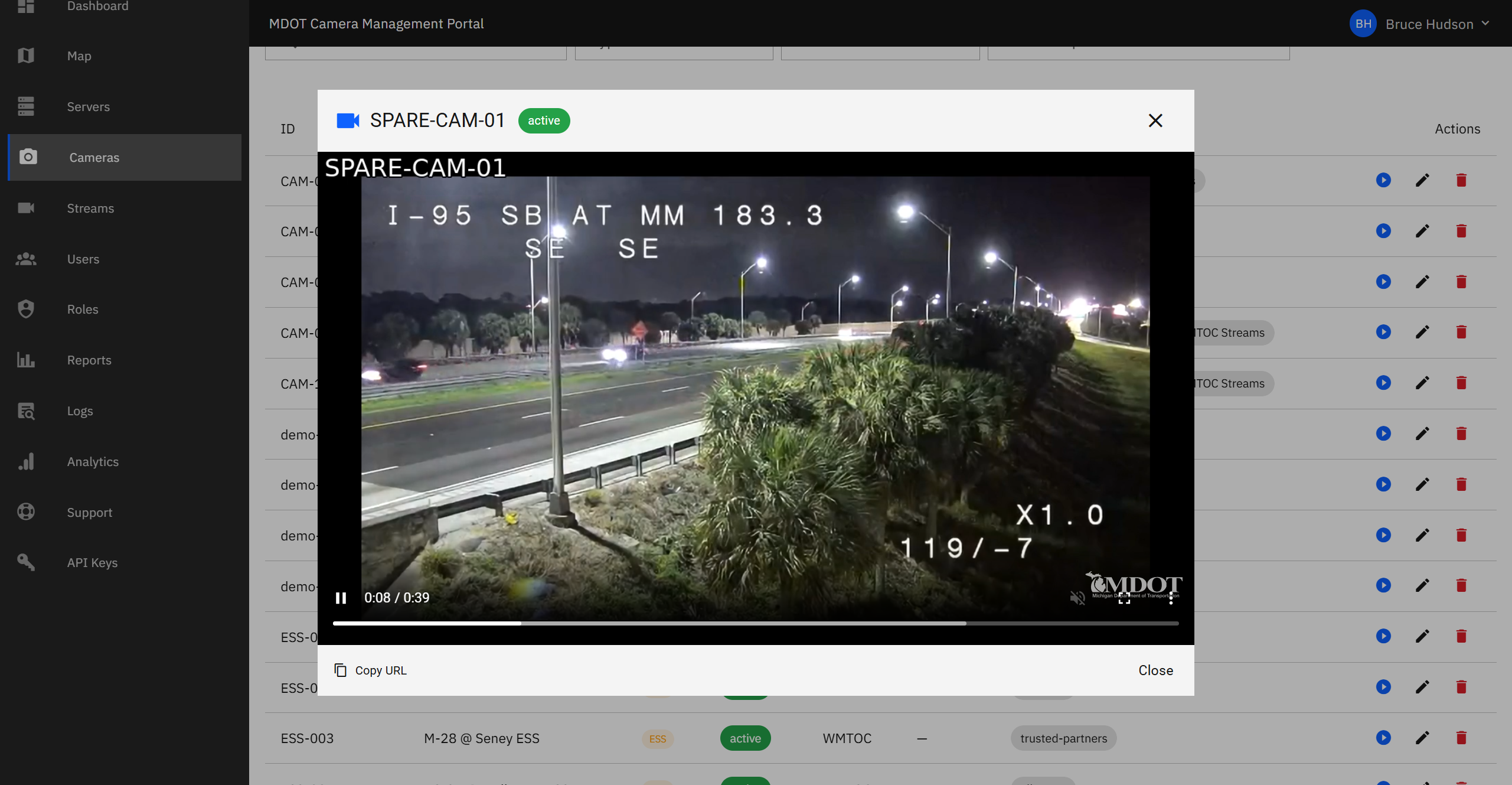
Live Video Player (CCTV)
Click the play button on any active CCTV camera to open the video player. The player loads the live feed and includes a button to copy the feed address.
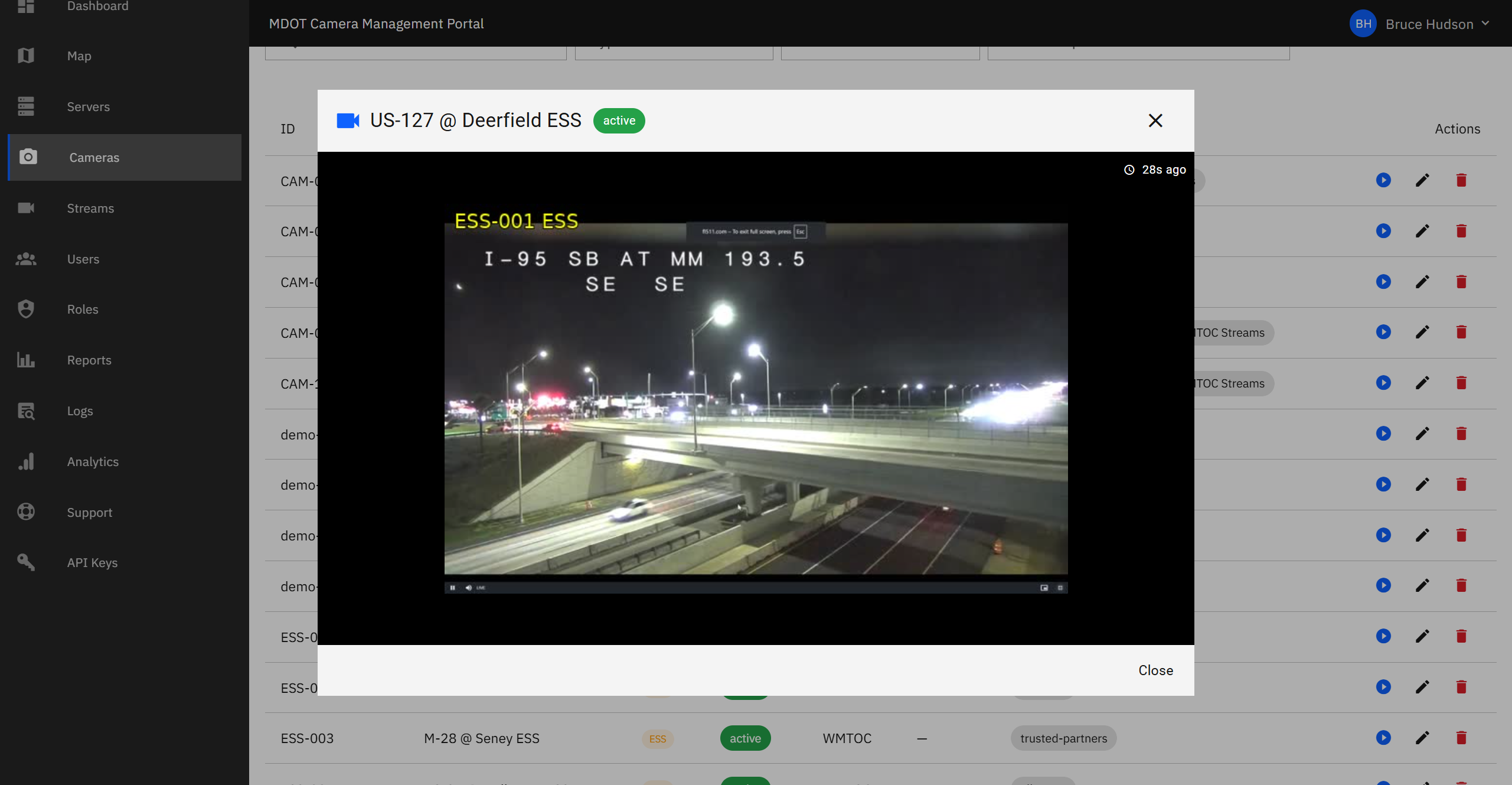
ESS Image Viewer
Click the play button on an ESS camera to open the image viewer instead. ESS cameras display the most recent environmental snapshot, which updates periodically rather than showing continuous video.
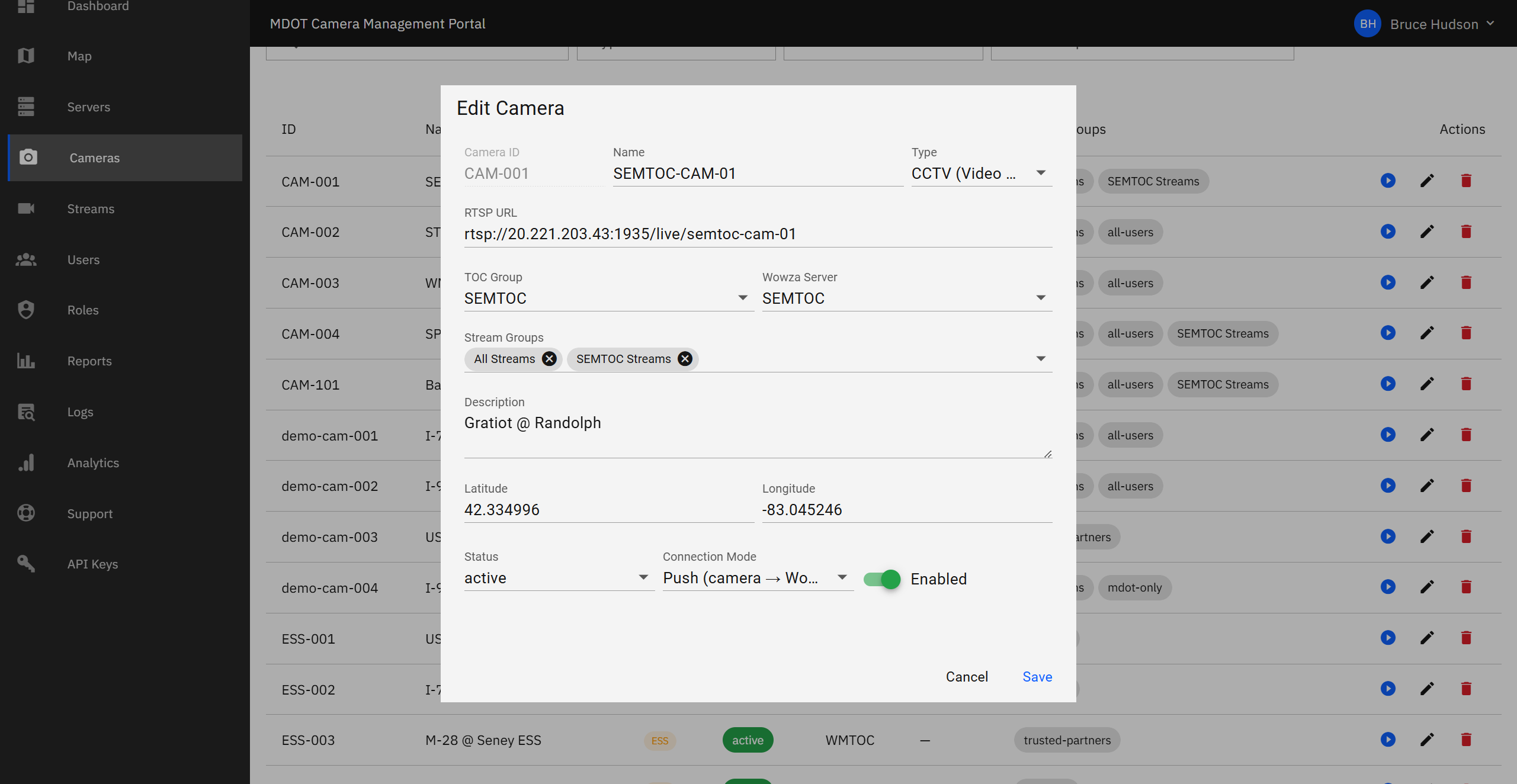
Edit Camera
Click the edit button on any camera to open the edit form. From here you can update the camera name, change its TOC assignment, modify stream group memberships, and update connection details.
Bulk Import
To add many cameras at once, use the import button at the top of the page. Upload a CSV or XLSX spreadsheet file containing camera details, and the system will create all the cameras in one step. The import process validates each row and reports any errors before saving.
Delete Camera
Click the delete button on a camera to remove it from the system. You will be asked to confirm before the camera is permanently deleted. Deleting a camera removes it from all stream groups and stops its feed.
How It Works in Practice
- Open the Camera List from the navigation menu.
- Use the search bar or filters to find the camera you need.
- Click the play button to watch a live feed (CCTV) or view the latest snapshot (ESS).
- Click the edit button to update camera details or change group assignments.
- To add cameras in bulk, click the import button and upload your spreadsheet file.