Reports
The Reports page provides four built-in reports that help you understand who is using the portal, how cameras are performing, what changes have been made, and who has access to what.
What This Page Does
Reports are organized into four tabs across the top of the page. Each tab shows a different report with its own filters and data. All reports support date range filtering and can be exported to a spreadsheet file (CSV) for further analysis or record-keeping. You can also schedule any report for automatic recurring delivery to your email as a compressed CSV attachment.
Key Features
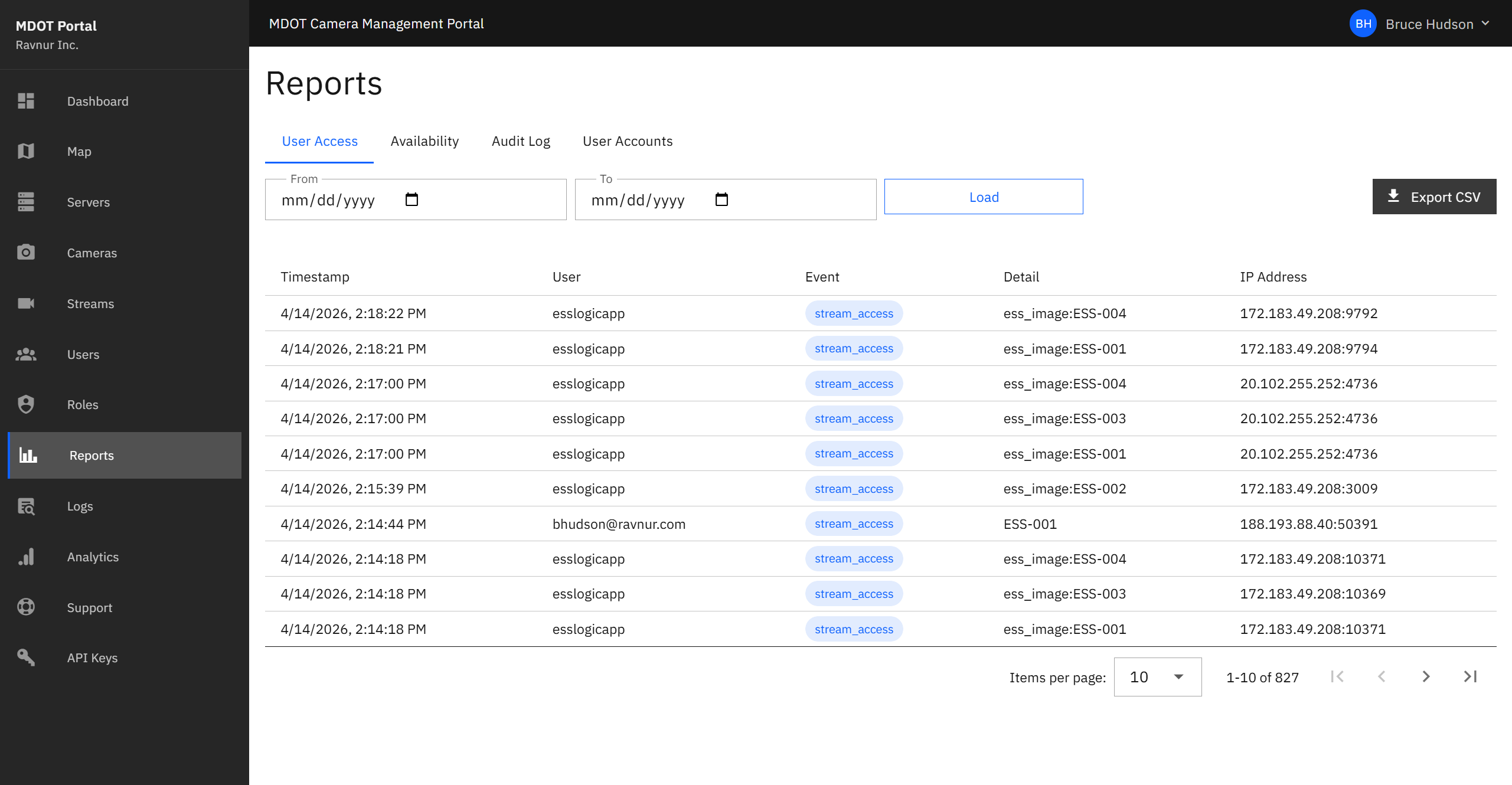
User Access Report
This report shows every sign-in event and every time a user opened a camera's live feed. Use it to answer questions like "Who viewed Camera X last Tuesday?" or "How many times did a particular user sign in this month?"
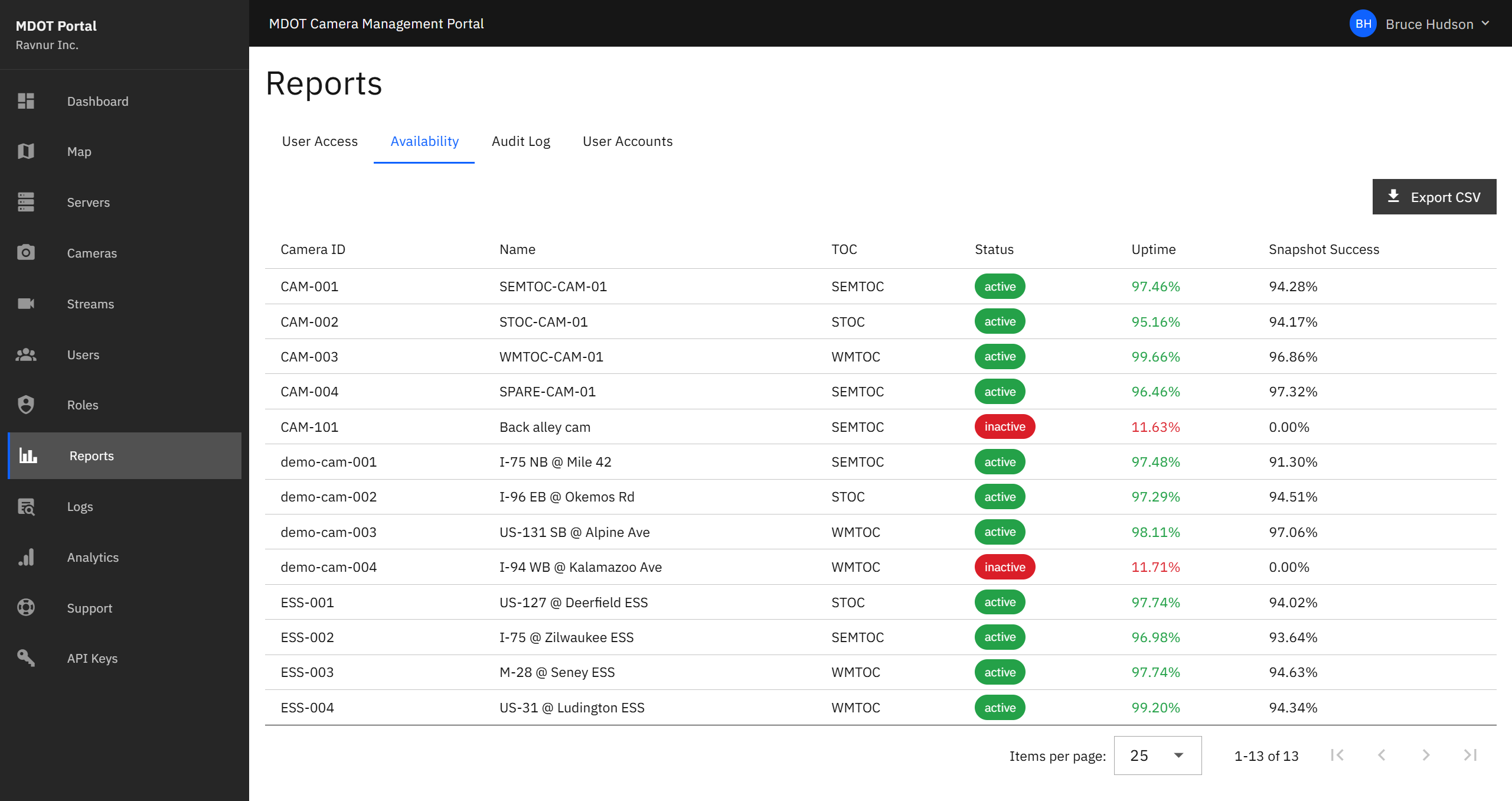
Availability Report
This report tracks how reliably each camera has been running. It shows two key numbers for every camera: the percentage of time the live feed was available (uptime) and the percentage of automatic snapshots that were captured successfully. Cameras with low numbers may need maintenance or a network check.
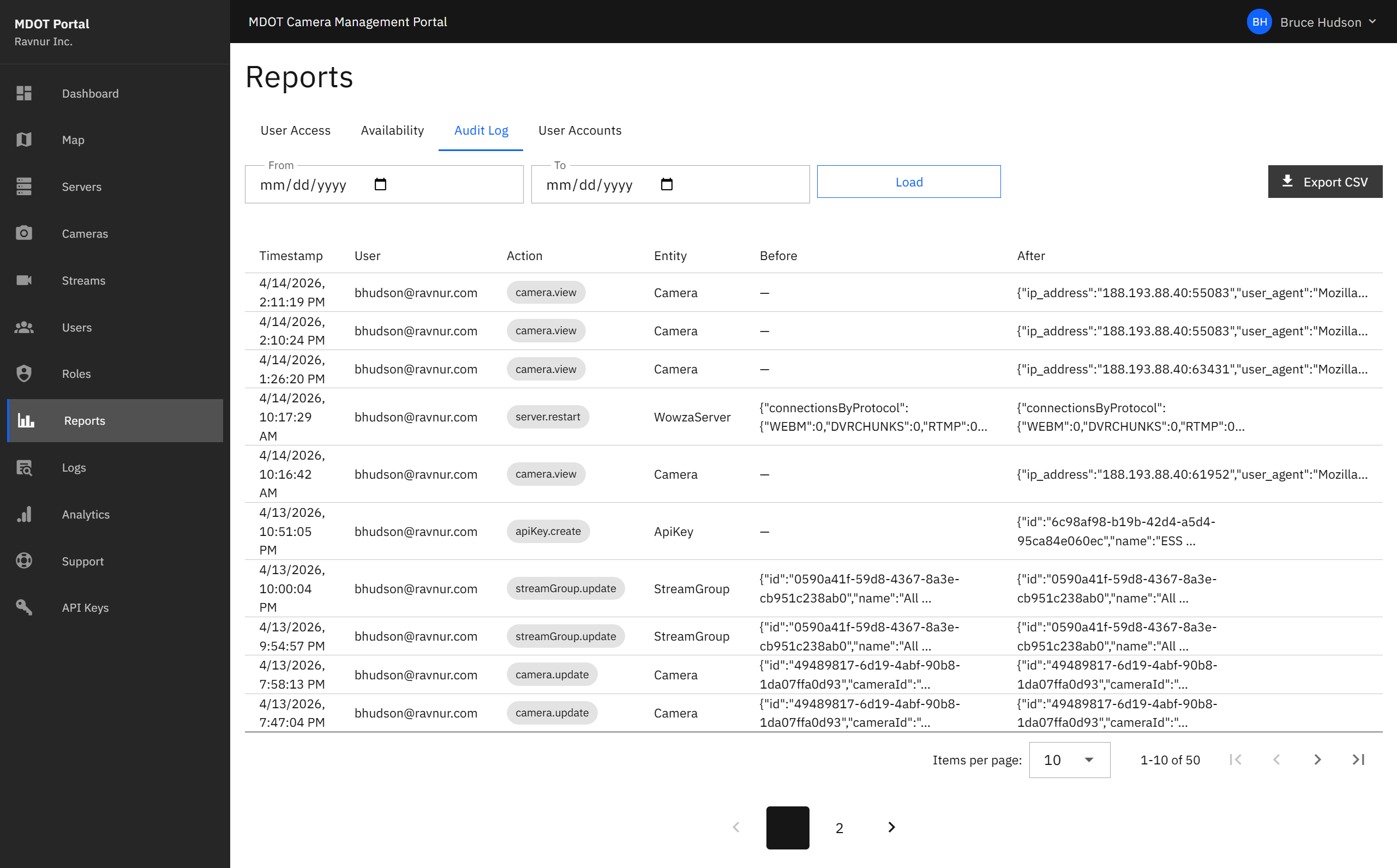
Audit Log
The Audit Log records every administrative action taken in the portal — adding a camera, changing a user's role, updating server settings, and so on. Each entry includes what was changed, who made the change, when it happened, and what the values were before and after the change. This report is essential for accountability and troubleshooting.
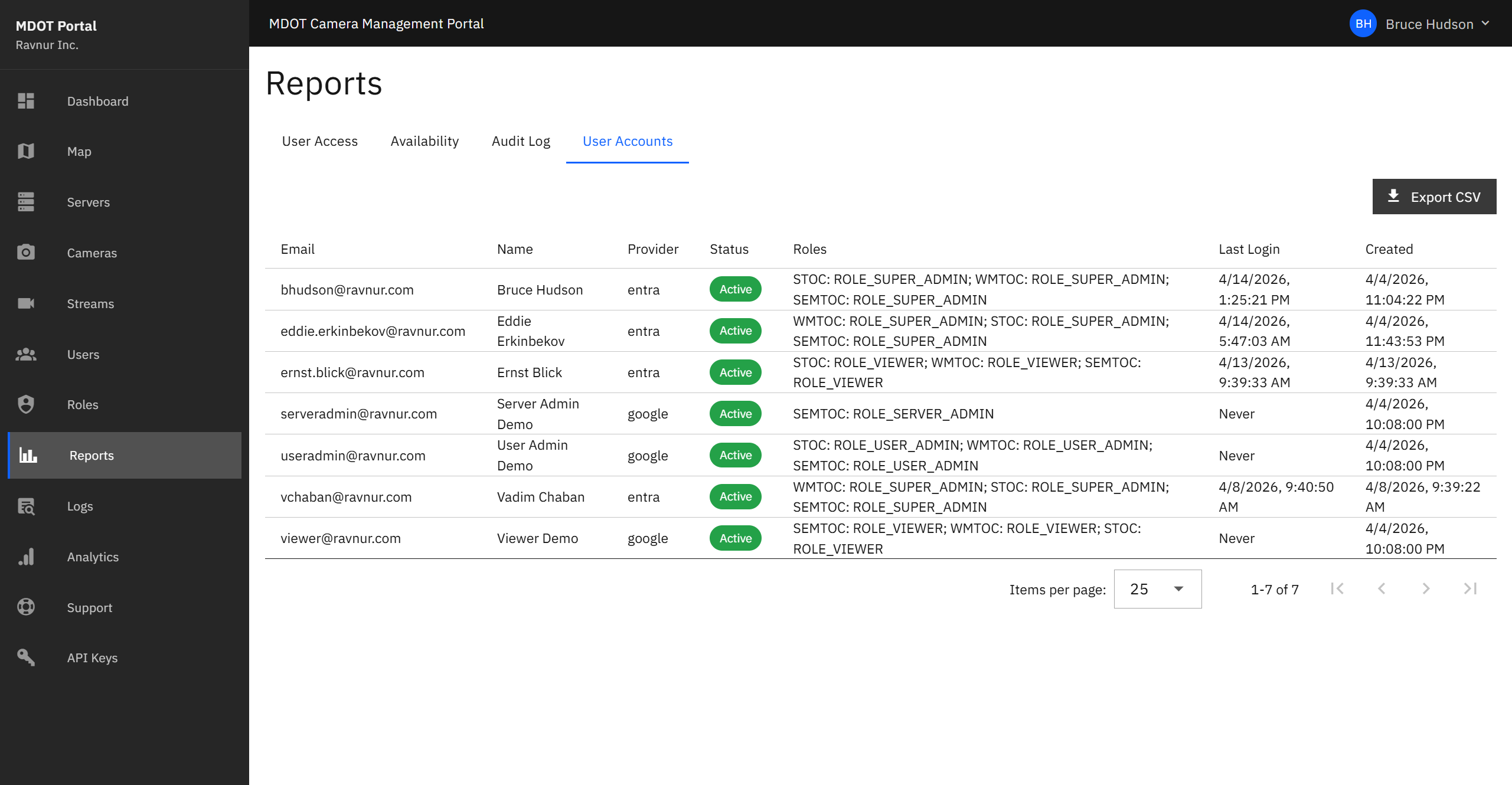
User Account Report
This report lists every user account in the portal along with their assigned roles, the management groups they belong to, their account status (active or inactive), and when they last signed in. Use it for periodic access reviews or when onboarding new staff.
Date Range Filters
Every report has a date range picker at the top. Select a start date and end date to narrow the results. The default range is the past 30 days.
CSV Export
Click the Export CSV button on any report tab to download the currently filtered data as a spreadsheet file. The exported file includes all visible columns and respects the active date range filter.
Scheduled Report Delivery
Any of the four reports can be scheduled for automatic generation and email delivery. Click the Schedule button next to the Export CSV button to set up a recurring report. The report will be generated as a compressed CSV file and emailed directly to your portal email address on the schedule you define.
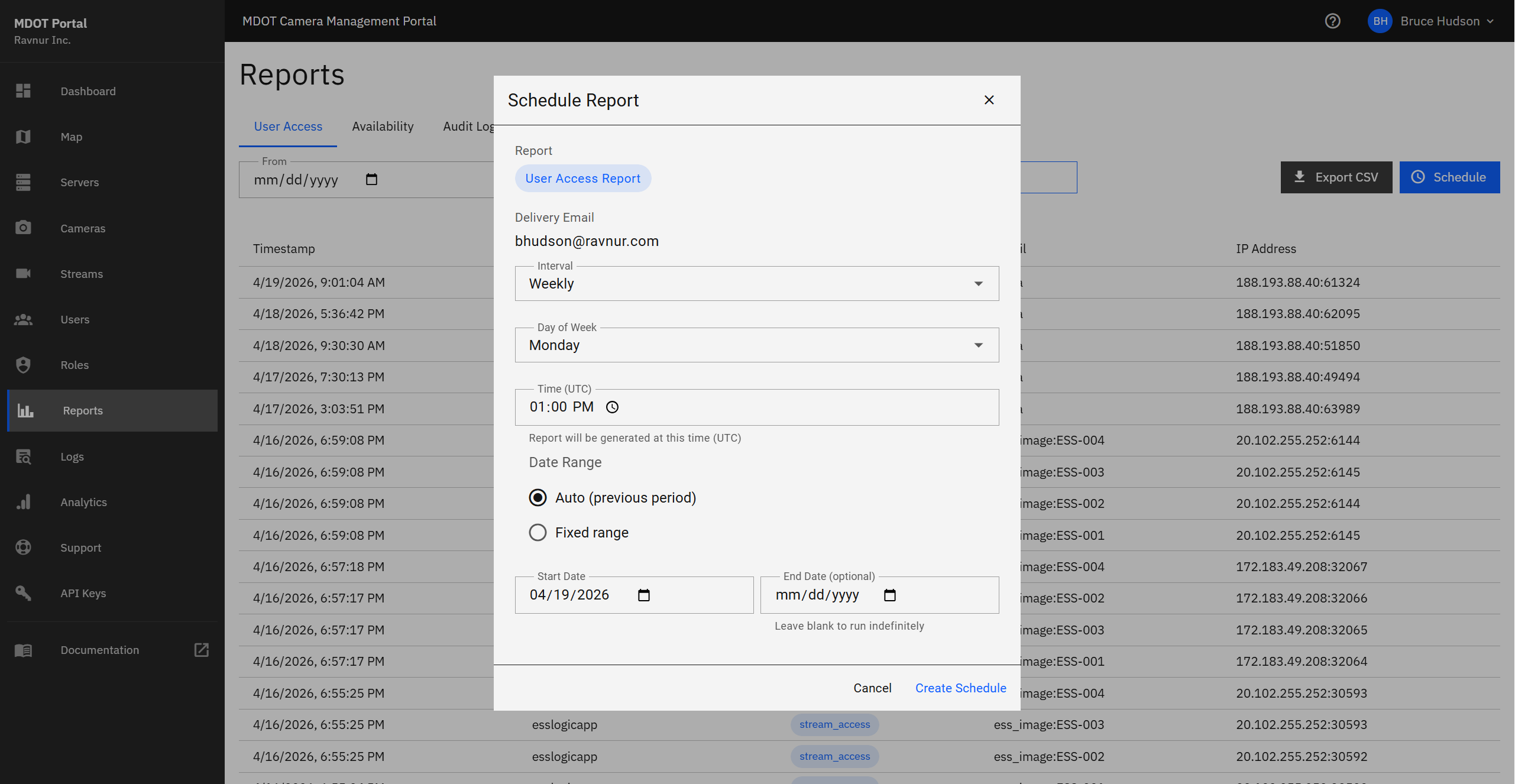
When creating a schedule, you can configure:
- Interval — Weekly, Monthly, Quarterly, or a custom multi-week cadence.
- Day and Time — Choose which day of the week or day of the month the report runs, and at what time (in UTC).
- Date Range Mode — "Auto (previous period)" calculates the date range automatically based on the interval (e.g., a weekly report covers the previous Monday through Sunday). "Fixed range" uses specific dates you provide.
- Start and End Date — Set when the schedule begins and optionally when it should stop. Leave the end date blank to run indefinitely.
Below the report tabs, the My Scheduled Reports panel lists all of your active and paused schedules. From this panel you can enable or disable a schedule with the toggle switch, edit its configuration, or delete it. Each schedule shows its last run time and whether it succeeded or failed.
If a scheduled report fails to deliver three times in a row, it is automatically paused and you will receive an email notification. You can review the error, fix the issue, and re-enable the schedule from the panel.
How It Works in Practice
- Open the Reports page from the navigation menu.
- Click the tab for the report you need (User Access, Availability, Audit Log, or User Account).
- Adjust the date range if you need a specific time period.
- Review the data in the table. Use the search box to find specific entries.
- Click Export CSV to download the report for sharing or archiving.
- Click Schedule to set up automatic recurring delivery of the report to your email.