Camera Map
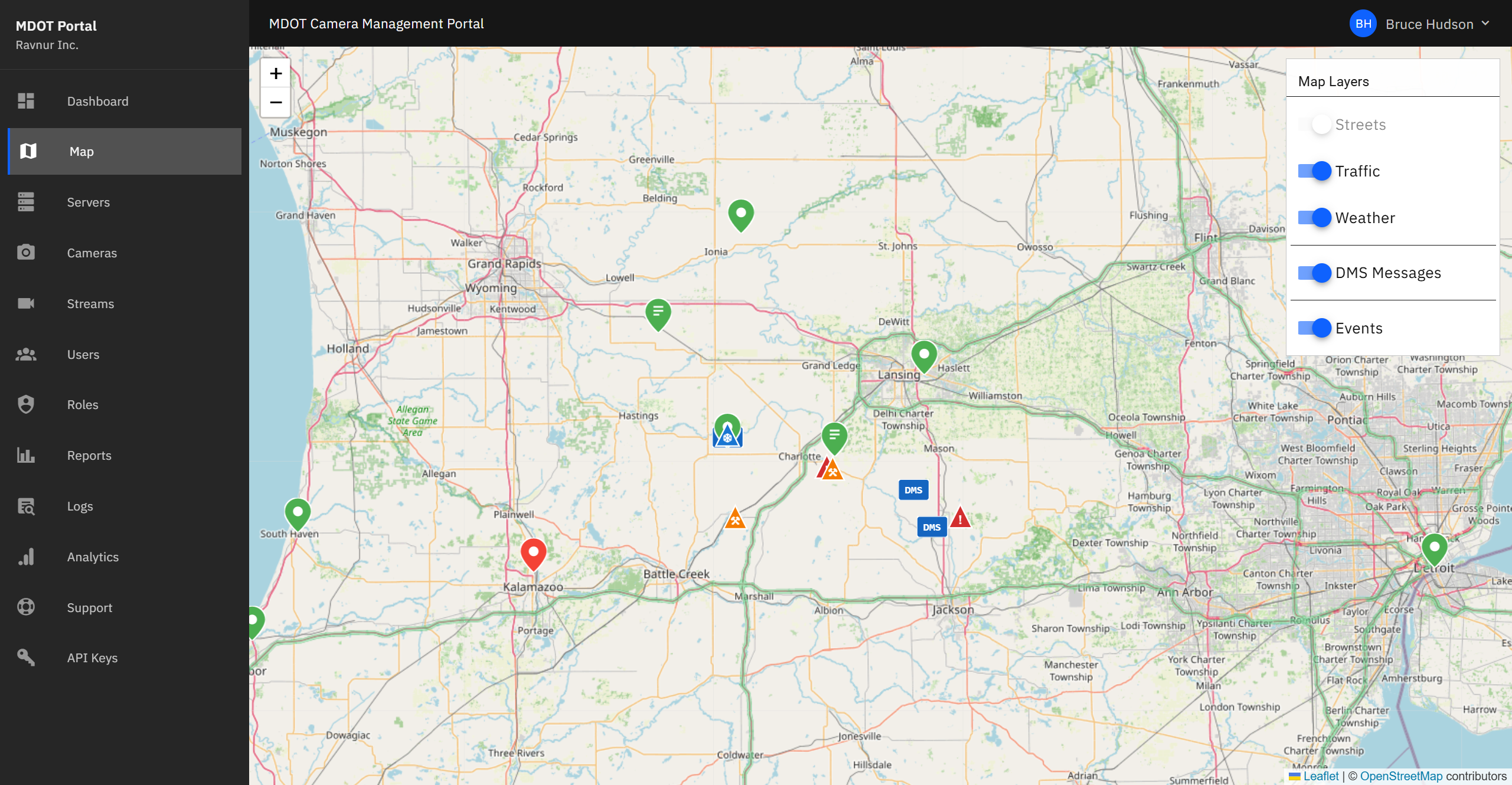
The Camera Map is an interactive map of Michigan that shows every camera location as a color-coded pin. It is the fastest way to find a camera and watch its live feed.
What This Page Does
The map displays all cameras that you have permission to view, placed at their real-world locations. You can zoom in to a specific highway interchange, click a pin to open a live video player, and toggle map layers like traffic flow or weather radar to see conditions alongside the camera feeds.
Key Features
Color-Coded Pins
Each camera appears as a pin on the map. The pin color tells you the camera's current status:
- Green pin — Camera is active and sending a live feed.
- Red pin — Camera is inactive or not responding.
- Orange pin — Environmental Sensor Station (ESS) camera. These cameras capture periodic snapshots of road and weather conditions rather than continuous video.
Live Video Player
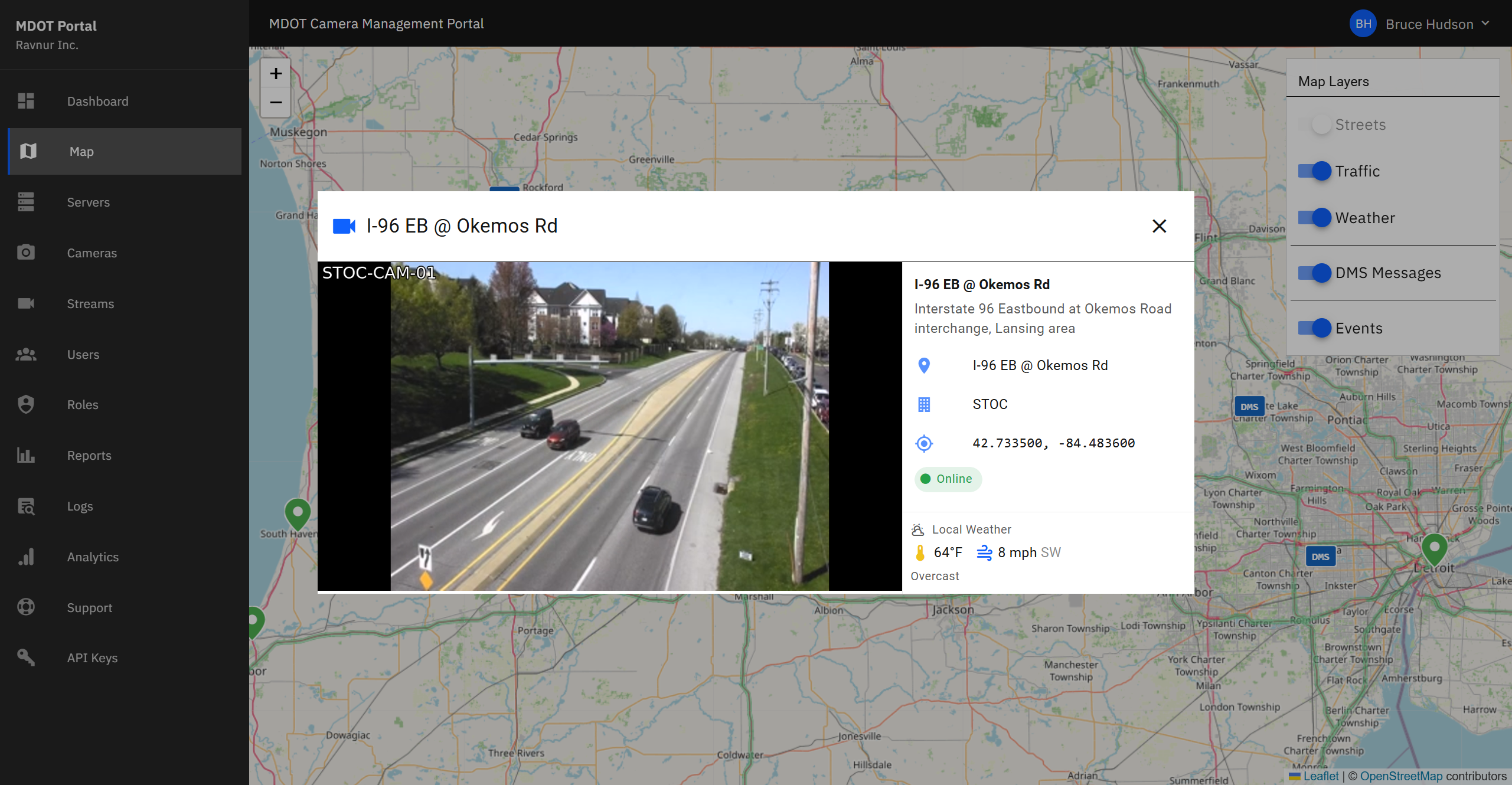
Click a green CCTV pin to open a video player window over the map. The player starts the live feed automatically. You can copy the feed address to share it with another application, or close the player to return to the map.
ESS Image Viewer
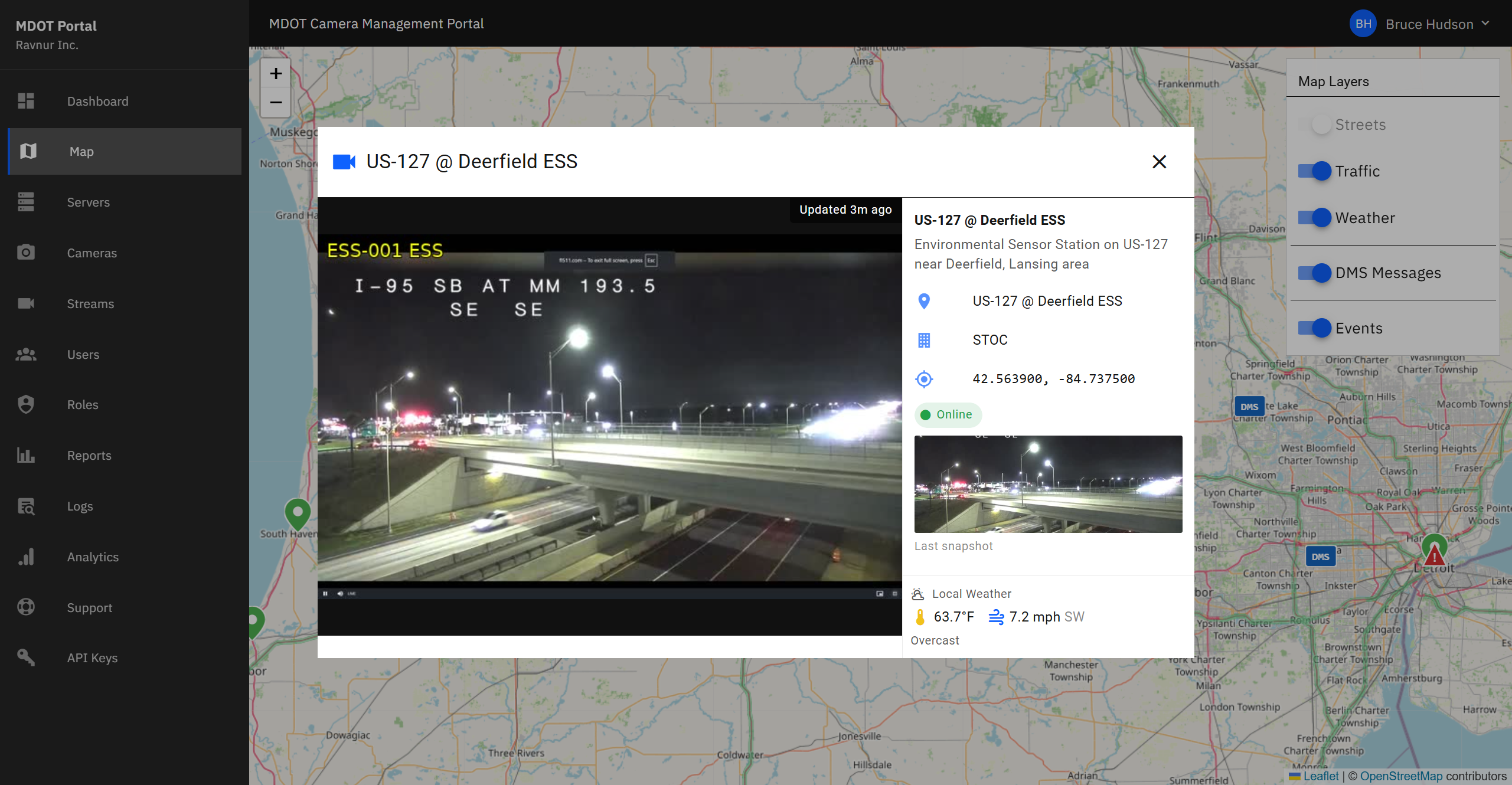
Click an orange ESS pin to open the image viewer. Instead of live video, you see the most recent snapshot from the environmental sensor. These images update periodically and are useful for checking road surface conditions, visibility, and weather at a specific location.
Map Layers
Toggle additional information on and off using the layer controls in the corner of the map:
- Traffic Flow — Color-coded road segments showing current traffic speed and congestion.
- Weather Radar — Precipitation overlay to see rain, snow, or ice conditions near cameras.
- Message Signs — Locations of dynamic message signs along highways.
- Road Events — Active incidents, construction zones, and road closures.
Search and Zoom
Use the search bar to jump to a specific camera by name or ID. You can also zoom in and out with your mouse wheel or the on-screen controls, and drag the map to pan to different areas of the state.
How It Works in Practice
- Open the Camera Map from the navigation menu.
- The map loads showing all cameras you have access to. Zoom in to the area you are interested in.
- Look for green pins (active cameras) or orange pins (ESS sensors) in your area.
- Click a green pin to watch the live feed. Click an orange pin to view the latest environmental snapshot.
- Turn on map layers (traffic, weather) if you need additional context around a camera location.
- Close the player or image viewer to return to the map and select another camera.