Server Management
The Server Management page shows the health and performance of each streaming server at MDOT's three Traffic Operations Centers. Use it to monitor capacity, check for problems, and restart servers when needed.
What This Page Does
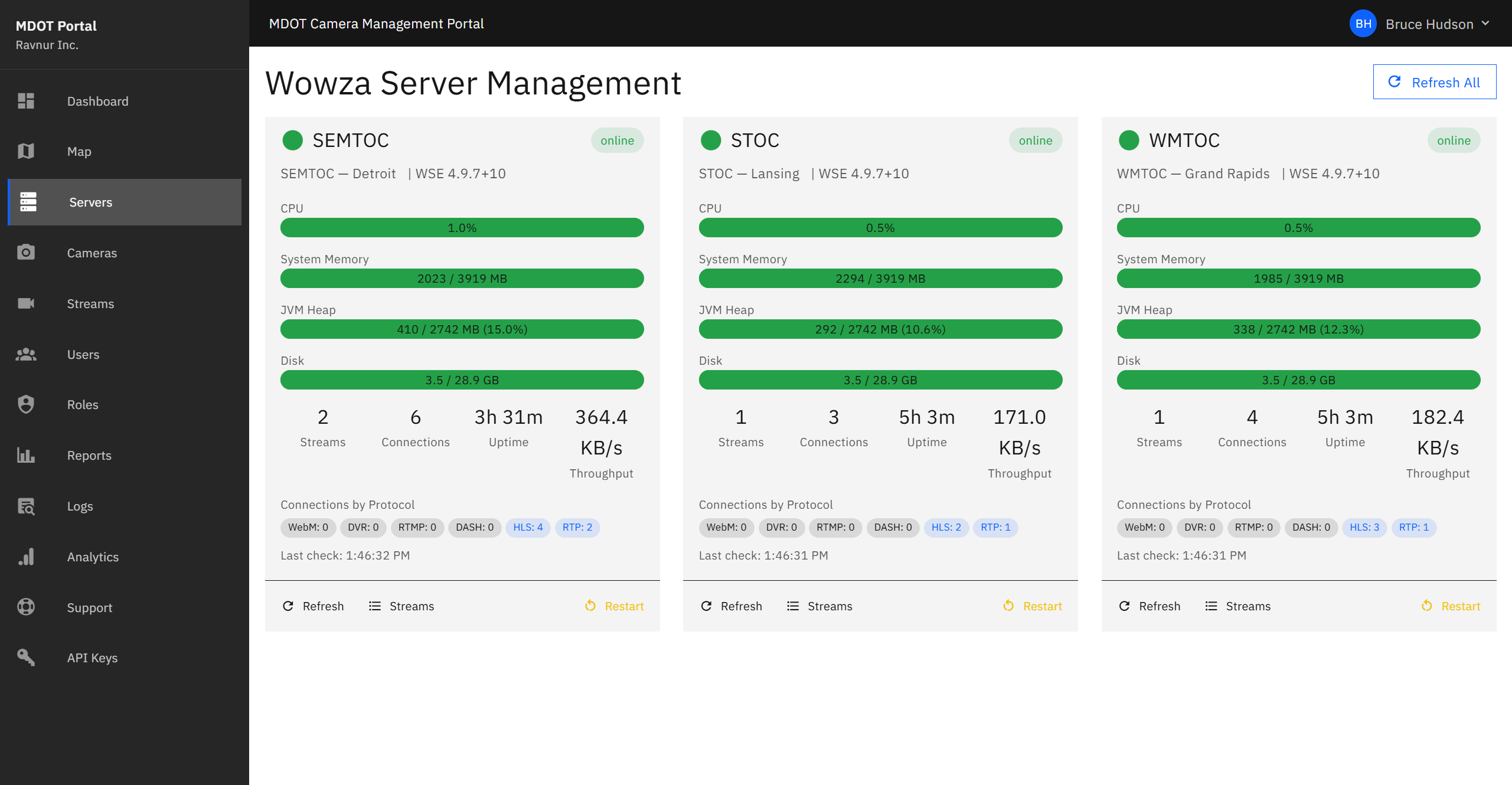
Each Traffic Operations Center (TOC) runs a streaming server that delivers camera feeds to users. This page displays a card for each server with real-time health metrics, so administrators can spot issues before they affect camera availability.
Key Features
Server Health Cards
Each server card displays the following information:
- System Memory — A progress bar showing how much of the server's total memory is in use. High usage may indicate the server is handling too many streams.
- JVM Heap — A progress bar showing internal application memory usage. If this reaches capacity, the server may need to be restarted.
- Disk Usage — A progress bar showing available storage space on the server.
- Active Streams — The number of camera feeds currently being processed by the server.
- Connections — The total number of viewers connected to this server right now.
- Uptime — How long the server has been running since its last restart.
- Throughput — The amount of data the server is sending to viewers, measured in real time.
Protocol Breakdown
Below the main metrics, each server card shows a breakdown of viewer connections by delivery method. This helps administrators understand how viewers are accessing camera feeds and whether any single method is under unusual load.
Active Incoming Streams
Click the "Streams" button on any server card to see a list of all camera feeds currently being received by that server. This is useful for verifying that specific cameras are connected and streaming properly.
Restart Server
If a server is experiencing problems, administrators can click the "Restart" button to restart it. A confirmation prompt appears before the restart begins. During the restart, camera feeds from that server will be temporarily unavailable. The server card will update automatically once the restart is complete.
How It Works in Practice
- Open the Server Management page from the navigation menu.
- Review the three server cards. Check that all servers show green or moderate usage levels.
- If a memory or disk bar is in the red zone, investigate whether too many cameras are assigned to that server or whether the server needs maintenance.
- Click "Streams" on a server to see which camera feeds it is currently handling.
- If a server is unresponsive or showing errors, click "Restart" and confirm the action. Wait for the server to come back online — the card will refresh automatically.